Motivation behind this
I am exploring Lightning Web Components and thought of preparing an use case which could describe objects and fields, prepare dynamic columns and rows to be displayed on datatable. I have also received many questions from Salesforce developers on handling data using combo box and datatable, so it might be helpful for them.
During this development, I have encountered many issues and gained knowledge on solving those which I want to share right here.
Let's get started.
Use Case
Developer wants to build a functionality like this as screen below:

- Display list of object names from org database and show them in combo box.
- Selecting the combo value, it will display list of fields of the object in the datatable
- Developer may select multiple field names from the list which will be shown in the textarea (just for simplicity and understanding) as comma delimited way.
- Clicking on Retrieve Records button, show list of records in the right hand side datatable. Interestingly, based on the fields from left hand side, dynamic columns has to built on right side datatable.
- If no records selected then clicking on Retrieve Records button will show error message.
- Reset button will reset the screen to the initial form.
Possible End Product
After building the use case, it will perform the functionality as following video:
Solution Approach
Let's first separate the functionalities in the two components as shown in the picture.
displayObjectsAndFields component will have functionality shown on left side and retrieveRecord component will have functionality shown on right side in the picture.
Flow Diagram
Create a flow diagram like this way to understand the functionalities, flow of control and finalize design approach.

Before going through this below section, it will be better to go through my post on Salesforce Lightning Web Components Cheat Sheet to have overall idea for all types of properties, methods, event propagation etc.
displayObjectsAndFields component:
displayObjectsAndFields.html will prepare a screen like this:

Code is as follows:
<template>
    <lightning-card>
        <p class="slds-p-horizontal_large">Select Object from dropdown:</p>
        <lightning-combobox
            name="progress"
            label="Object Name"
            value={value}
            placeholder="Select Object"
            options={statusOptions}
            onchange={handleChange}
            required
            >
        </lightning-combobox>

        <br></br>
        <p class="slds-p-horizontal_medium">List of Fields of {value} </p>

        <div style="height: 200px;">
            <lightning-datatable
                key-field="id"
                data={tableData}
                onrowselection={handleRowAction}
                columns={columns}>
            </lightning-datatable>
        </div>

        <lightning-textarea
            name="txaSelectedFields"
            value={selectedFieldsValue}
            label="Selected Fields" readonly>
        </lightning-textarea>

        <lightning-button variant="brand" label="Retrieve Records"
                title="Retrieve Records" onclick={handleClick}
                class="slds-m-left_x-small">
        </lightning-button>
        <lightning-button variant="brand" label="Reset"
                title="Reset" onclick={handleResetClick}
                class="slds-m-left_x-small">
        </lightning-button>

    </lightning-card>
</template>
displayObjectsAndFields.js
This is most important for implementing this functionality and if we follow the flow diagram it is easy to understand which methods are performing which responsibilities. Some important points to be highlighted:
- import LightningElement, wire, track which will be used in this class.
- import retrieveObjects and getListOfFields of DescribeObjectHelper apex class.
- define columns for datatable
- @wire to function i.e retrieveObjects and preparing the combo box data looking through map and create array with spread operator.
data.map(element=>{
                this.items = [...this.items ,{value: element.QualifiedApiName,
                    label: element.MasterLabel}];
})
- @wire to getListOfFields and passing $value parameter to the controller method.
this.fieldItems = [{FieldLabel: objStr[i], FieldAPIName: i},...this.fieldItems];
Notice in the above statement, array formation has been done in reverse way based on the data received from map. That's beauty of spread operator.
- In the handleClick event, multiple parameters have been passed as an array during event dispatch.
const evtCustomEvent = new CustomEvent('retreive', {
                detail: {valueParam, selectedFieldsValueParam}
                });
this.dispatchEvent(evtCustomEvent);
Entire js file as below:
1 2 3 4 5 6 7 8 9 10 11 12 13 14 15 16 17 18 19 20 21 22 23 24 25 26 27 28 29 30 31 32 33 34 35 36 37 38 39 40 41 42 43 44 45 46 47 48 49 50 51 52 53 54 55 56 57 58 59 60 61 62 63 64 65 66 67 68 69 70 71 72 73 74 75 76 77 78 79 80 81 82 83 84 85 86 87 88 89 90 91 92 93 94 95 96 97 98 99 100 101 102 103 104 105 106 107 108 109 110 111 112 113 114 115 116 117 118 119 120 121 122 123 124 125 126 127 128 129 130 131 132 133 134 135 136 137 138 139 140 141 142 143 144 145 146 147 148 149 150 151 152 153 154 155 | /* eslint-disable no-empty */ /* eslint-disable no-undef */ /* eslint-disable @lwc/lwc/no-async-operation */ /* eslint-disable no-console */ import { LightningElement, track, wire } from 'lwc'; import retreieveObjects from '@salesforce/apex/DescribeObjectHelper.retreieveObjects'; import getListOfFields from '@salesforce/apex/DescribeObjectHelper.getListOfFields'; import { ShowToastEvent } from 'lightning/platformShowToastEvent'; /** The delay used when debouncing event handlers before invoking Apex. */ const DELAY = 300; // eslint-disable-next-line no-unused-vars //define data table columns const columns = [ { label: 'Field Label', fieldName: 'FieldLabel' }, { label: 'Field API Name', fieldName: 'FieldAPIName' }, ]; let i=0; export default class DisplayObjectsAndFields extends LightningElement { //this is for showing toast message _title = 'Retrieve Records Error'; message = 'Select atleast one field'; variant = 'error'; variantOptions = [ { label: 'error', value: 'error' }, { label: 'warning', value: 'warning' }, { label: 'success', value: 'success' }, { label: 'info', value: 'info' }, ]; @track value = ''; //this displays selected value of combo box @track items = []; //this holds the array for records with value & label @track fieldItems = []; //this holds the array for records with table data @track columns = columns; //columns for List of fields datatable @track selectedFieldsValue=''; //fields selected in datatable @track tableData; //data for list of fields datatable //retrieve object information to be displayed in combo box and prepare an array @wire(retreieveObjects) wiredObjects({ error, data }) { if (data) { //new efficient method with map, looking through each element data.map(element=>{ this.items = [...this.items ,{value: element.QualifiedApiName, label: element.MasterLabel}]; }); /* //previously used 'for' loop for(i=0; i<data.length; i++) { console.log('MasterLabel=' + data[i].MasterLabel + 'QualifiedApiName=' + data[i].QualifiedApiName); this.items = [...this.items ,{value: data[i].QualifiedApiName, label: data[i].MasterLabel}]; } */ this.error = undefined; } else if (error) { this.error = error; this.data = undefined; } } //retrieve combo-box values as status options get statusOptions() { return this.items; } //retrieve field information based on selected object API name. @wire(getListOfFields,{objectAPIName: '$value'}) wiredFields({ error, data }) { if (data) { //first parse the data as entire map is stored as JSON string let objStr = JSON.parse(data); //now loop through based on keys for(i of Object.keys(objStr)){ console.log('FieldAPIName=' +i + 'FieldLabel=' + objStr[i]); //spread function is used to stored data and it is reversed order this.fieldItems = [ {FieldLabel: objStr[i], FieldAPIName: i},...this.fieldItems]; } this.tableData = this.fieldItems; this.error = undefined; } else if (error) { this.error = error; this.data = undefined; } } //this method is fired based on combo-box item selection handleChange(event) { // get the string of the "value" attribute on the selected option const selectedOption = event.detail.value; this.value = selectedOption; this.fieldItems = []; //initialize fieldItems array this.tableData = []; //initialize list of fields datatable data //deplay the processing window.clearTimeout(this.delayTimeout); this.delayTimeout = setTimeout(() => { this.value = selectedOption; }, DELAY); } //this method is fired based on row selection of List of fields datatable handleRowAction(event){ const selectedRows = event.detail.selectedRows; this.selectedFieldsValue = ''; //newly efficient script // Display that fieldName of the selected rows in a comma delimited way selectedRows.map(element=>{ if(this.selectedFieldsValue !=='' ){ this.selectedFieldsValue = this.selectedFieldsValue + ',' + element.FieldAPIName; } else{ this.selectedFieldsValue = element.FieldAPIName; } }); } //this method is fired when retrieve records button is clicked handleClick(event){ const valueParam = this.value; const selectedFieldsValueParam = this.selectedFieldsValue; //show error if no rows have been selected if(selectedFieldsValueParam ===null || selectedFieldsValueParam===''){ const evt = new ShowToastEvent({ title: this._title, message: this.message, variant: this.variant, }); this.dispatchEvent(evt); } else { //propage event to next component const evtCustomEvent = new CustomEvent('retreive', { detail: {valueParam, selectedFieldsValueParam} }); this.dispatchEvent(evtCustomEvent); } } //this method is fired when reset button is clicked. handleResetClick(event){ this.value = ''; this.tableData = []; const evtCustomEvent = new CustomEvent('reset'); this.dispatchEvent(evtCustomEvent); } } |
DescribeObjectHelper.cls
This class has been used for both the components. For retreieveObjects and retreieveRecords methods it fetches data based on SOQL query.
- Rather than preparing list of objects upon describing from org, here SOQL query has been used just to show case other way can be possible.
- getListOfFields method, prepares field map based on describing objects. Here, map key/value pair stores AccountId field at the bottom where as slaexpirationdate__c field at the top, that's why spread operator used in the reversed way.
1 2 3 4 5 6 7 8 9 10 11 12 13 14 15 16 17 18 19 20 21 22 23 24 25 26 27 28 29 30 31 32 33 34 35 36 37 38 39 40 | public inherited sharing class DescribeObjectHelper { //Retrieve all the objects from org @AuraEnabled (cacheable=true) public static List<EntityDefinition> retreieveObjects(){ return [SELECT Id, MasterLabel, DeveloperName, QualifiedApiName FROM EntityDefinition WHERE IsApexTriggerable = true ORDER BY MasterLabel]; } //Retrieve field details based on Object API Name @AuraEnabled (cacheable=true) public static String getListOfFields(String objectAPIName){ Map<string, string> fieldList = new Map<string, string>(); if(!String.isEmpty(objectAPIName)){ Map<String, String> mapField = new Map<String, String>(); Map<string,SObjectField> lstFields = schema.getGlobalDescribe().get(objectAPIName).getDescribe().fields.getMap(); for(String str: lstFields.keySet()){ mapField.put(str, lstFields.get(str).getDescribe().getLabel()); } System.debug(JSON.serializePretty(mapField)); return JSON.serializePretty(mapField); } return null; } //Retrieve records based on selected fields and object. @AuraEnabled (cacheable=true) public static List<SObject> retreieveRecords(String objectName, String fieldAPINames){ String strQuery = 'SELECT ' + String.escapeSingleQuotes(fieldAPINames) + ' FROM ' + String.escapeSingleQuotes(objectName) + ' LIMIT 20'; return database.query(strQuery); } } |
Let's move to other component.
retrieveRecord component
retrieveRecord.html will prepare a screen like this:
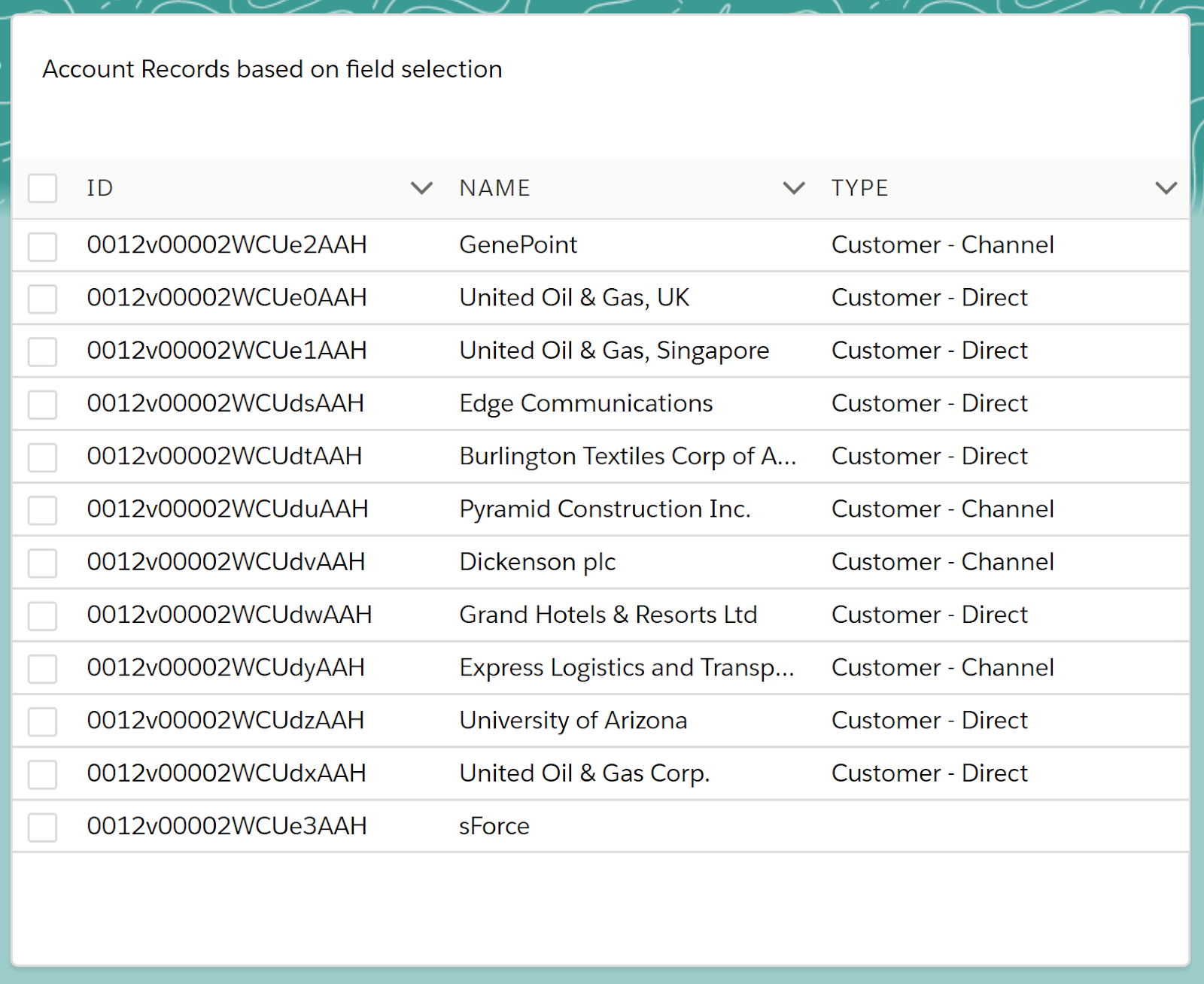
Code is as follows:
<template>
    <div class="c-container">
        <lightning-layout>
            <lightning-layout-item padding="around-small">
                <c-display-objects-and-fields onretreive={retriveRecordHandler}
                                                onreset={resetHandler}>
                </c-display-objects-and-fields>
            </lightning-layout-item>
            <template  if:true={isRecordsVisible}>
                <div class="slds-card">
                    <lightning-layout-item padding="around-small">
                        <div class="slds-card">
                            <p class="slds-p-horizontal_medium">{objectName} Records based on field selection </p>
                            <br></br>
                                <lightning-datatable
                                    key-field="id"
                                    data={data}
                                    columns={columns}
                                    min-column-width=200>
                                </lightning-datatable>
                        </div>
                    </lightning-layout-item>
                </div>
            </template>
        </lightning-layout>
    </div>
</template>
Important things to note:
- c-display-objects-and-fields component to listening retrieve and reset event
<c-display-objects-and-fields onretreive={retriveRecordHandler}
                                                onreset={resetHandler}>
- use of isRecordsVisible boolean variable to show table data or not.
retrieveRecord.js
Here retriveRecordHandler method, dynamic columns has been built using below:
columnFields.map(element=>{
            let itemValue = element.charAt(0).toUpperCase()+ element.slice(1);
            this.items = [...this.items ,{label: itemValue,
                                        fieldName: itemValue}];
        });
1 2 3 4 5 6 7 8 9 10 11 12 13 14 15 16 17 18 19 20 21 22 23 24 25 26 27 28 29 30 31 32 33 34 35 36 37 38 39 40 41 42 43 44 45 46 47 48 49 50 51 52 53 54 55 56 57 58 59 60 | /* eslint-disable @lwc/lwc/no-async-operation */ /* eslint-disable no-undef */ /* eslint-disable no-console */ import { LightningElement, wire, api, track } from 'lwc'; import retreieveRecords from '@salesforce/apex/DescribeObjectHelper.retreieveRecords'; export default class RetrieveRecord extends LightningElement { @api objectName = ''; //holding objectName value which is passed from other component @api fieldAPINames = ''; //holds list of fields API Name which is passed from other component items=[]; @track data=[]; @track columns; isRecordsVisible; //decision to make if this dynamic table to be shown. //retrieve data from databased @wire(retreieveRecords,{objectName:'$objectName' ,fieldAPINames:'$fieldAPINames'}) wiredObjects({ error, data }) { if (data) { console.log('data in string='+ JSON.stringify(data)); this.data = data; this.error = undefined; } else if (error) { this.error = error; this.data = undefined; } } //due to event propagation this method is called retriveRecordHandler(event){ let args = JSON.parse(JSON.stringify(event.detail)); //{"valueParam":"Account","selectedFieldsValueParam":"id,name,type"} this.objectName = args.valueParam; this.fieldAPINames = args.selectedFieldsValueParam; //create columns from fieldAPINames ("id,name,type") let columnFields = args.selectedFieldsValueParam.split(','); this.items=''; //create columns for dynamic data display. Here all fields must be converted to initial letter as upper case //e.g id,name,type to transformed to Id, Name, Type columnFields.map(element=>{ let itemValue = element.charAt(0).toUpperCase()+ element.slice(1); this.items = [...this.items ,{label: itemValue, fieldName: itemValue}]; }); this.columns = this.items; this.isRecordsVisible = true; } //due to event propagation this method is called for reseting datatable resetHandler(event){ this.isRecordsVisible = false; this.columns = []; this.data = []; } } |
meta files should include where these components are available.
<?xml version="1.0" encoding="UTF-8"?>
<LightningComponentBundle xmlns="http://soap.sforce.com/2006/04/metadata" fqn="displayObjectsAndFields">
    <apiVersion>46.0</apiVersion>
    <isExposed>true</isExposed>
    <targets>
        <target>lightning__RecordPage</target>
        <target>lightning__AppPage</target>
        <target>lightning__HomePage</target>
    </targets>
</LightningComponentBundle>