Showing posts with label Salesforce Big Object. Show all posts

Monday, August 12, 2019

Display Big Object's Records in Dashboards leveraging Salesforce Einstein Analytics

Motivation behind this


I have done few proof-of-concepts on Big Objects which has limitations of showing records in Salesforce Standard reports and dashboards. Big Objects can hold millions and billions of records which are good for data archival purpose. To display data in reports data must exist in Salesforce objects (Standard, Custom or External) where as for Big Objects, Standard reporting is not supported.


Today, I was going through the trailhead module Integrate Local and Remote Data in Einstein Analytics and thought of displaying Big Objects data using Einstein Analytics Studio and to overcome this limitation in a different ways.


Little bit information about Big Objects


  • It stores billions of data on Salesforce Platform and we can archive data from other objects or datasets.
  • There are two type of Big Objects: Standard and Custom
  • Only following field types are available: Lookup Relation, Number, Text, Long Text Area and Date/Time
  • Big Object supports custom Lightning and Visualforce components rather than standard UI elements home pages, detail pages, list views etc.
  • We can create up to 100 Big Objects in per org.
  • It doesn't support encryption.
For more information, refer Big Objects Implementation Guide


Use Case


Business has a requirement to show Big Objects data as reports and dashboards so that archived data can be viewed without loading them in Salesforce objects again.

Though developers can build custom UI screen using Lightning or Visualforce but Business wants them as reports/dashboards so that even Salesforce Administrator can maintain those.

Expected Outcome


After creating dashboard using Einstein Analytics Studio, it will look like this, though there are various types of charts are supported.


Solution Approach


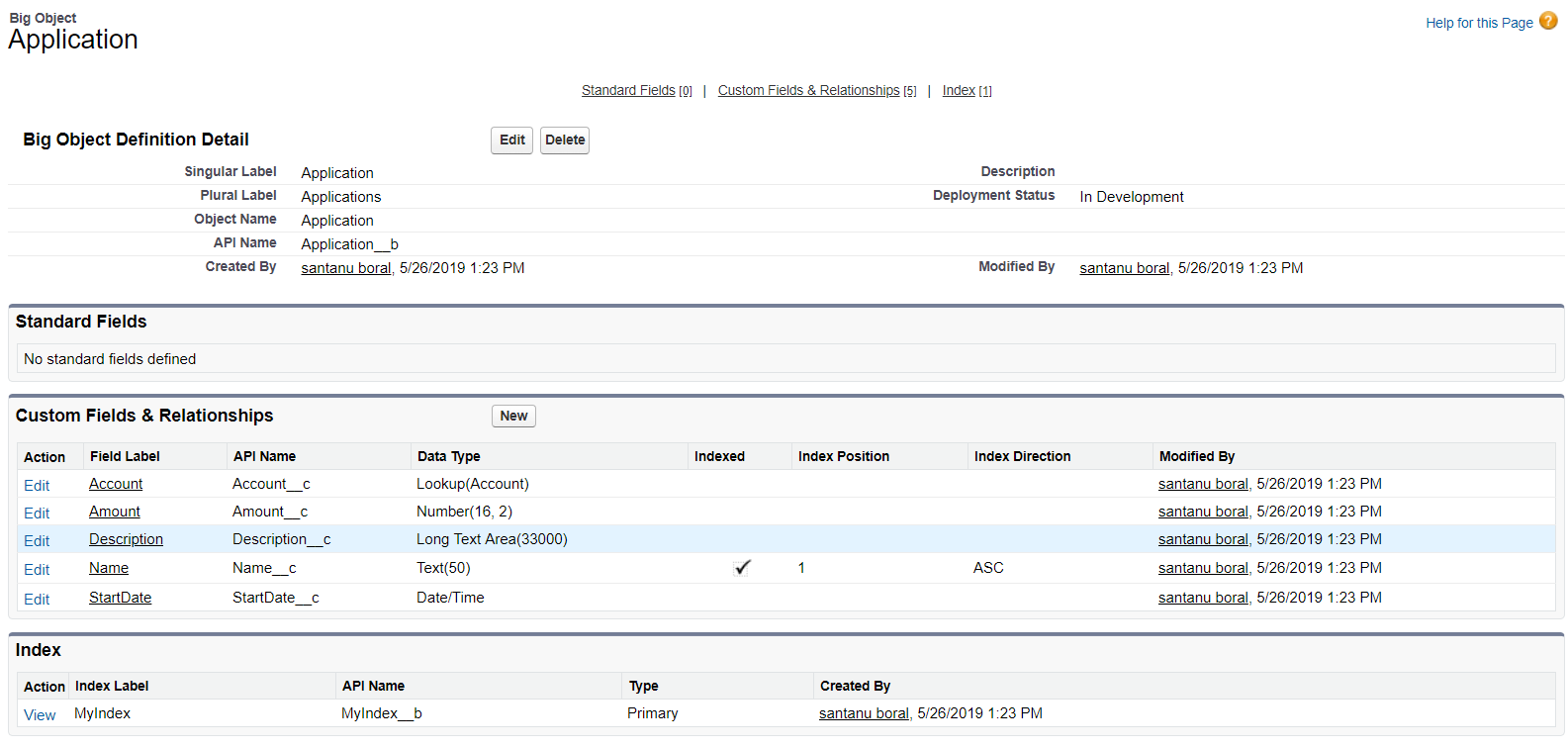
First, create Big Object called Application (API name: Application__b) as follows:


Secondly, insert few records into this Application Big Object. For sake of simplicity, I have chosen 2 Accounts and inserted total 7 records with the following script.


Account acct = [SELECT Id, Name FROM Account WHERE Id='0012v00002RuJp7AAF'];
  
Application__b appObj = new Application__b();  
appObj.Name__c = 'My Application';  
appObj.Amount__c = 100;  
appObj.Description__c = 'Testing with data';  
appObj.Account__c = acct.Id;  
appObj.StartDate__c = System.today();  
  
Database.insertImmediate(appObj); 

For archival purpose, if data needs to be inserted then it can be done through batch processing.


Some terminology of Einstein Analytics


An Einstein Analytics app -  is a curated set of analyses and paths through your data, plus powerful tools for spontaneous, deep explorations. Analytics starts with apps. Apps organize data projects, run presentations directly from dashboards, and control asset sharing.

A lens - is a visualization of data in a dataset. You use the lens to explore data graphically and to build queries for a dashboard.

A Dataset - which contains the data to be displayed.


Configuring Einstein Analytics Studio


If we follow step by step the above trailhead project, it will be very easy. 

Sign Up for an Analytics Developer Edition Org


For actual development, Customer has to procure the licenses.

Create a Dataflow

Navigation: Analytics Studio -> Data Manager -> Dataflows & Recipes

I have create a dataflow named Big Object Dataflow.

Here Application object is the root object and Account is related object. You can also see that, Application object has a lookup relationship to Account.

Create a Dataset


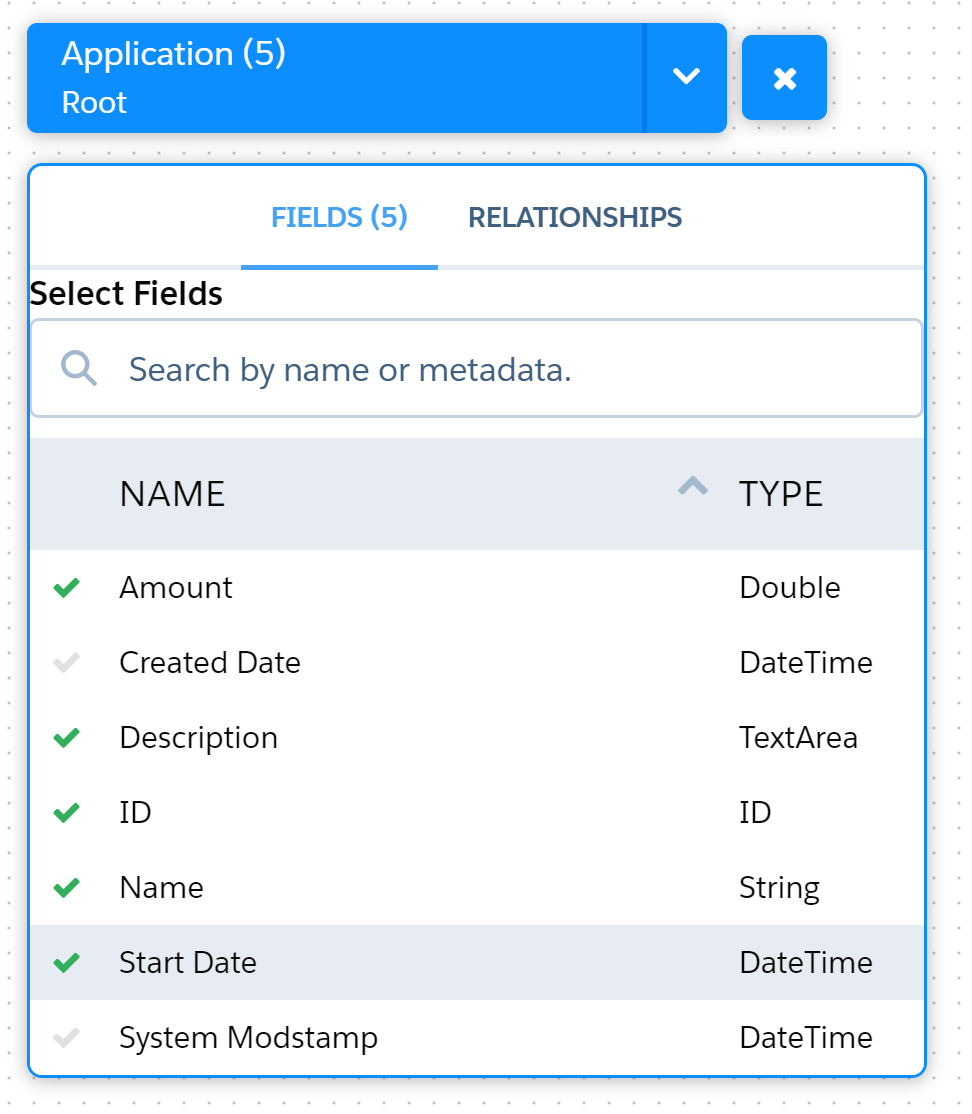
Choose root object and fields
Choose related objects from Relationships tab.
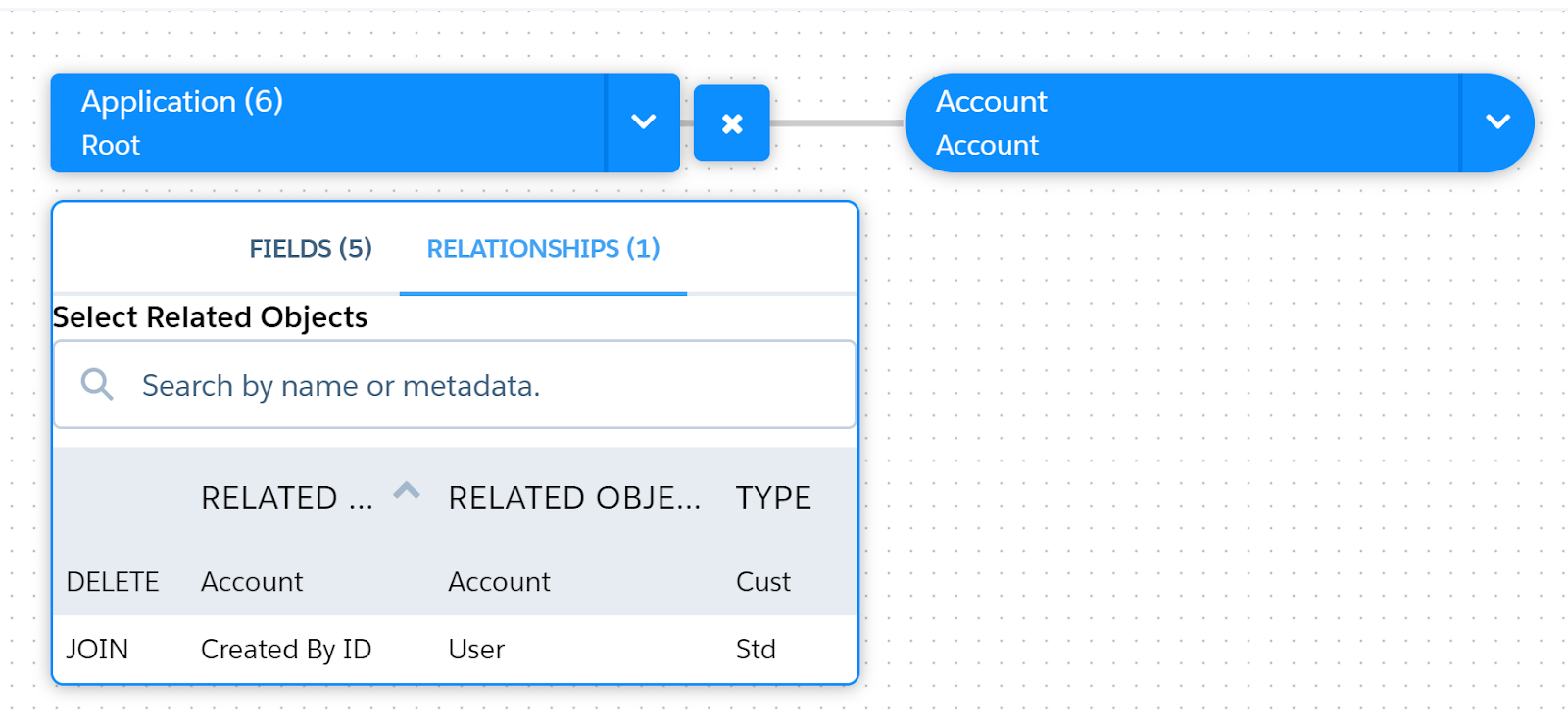
From Account, I have selected Name, Type and Billing Country.

Big Object Dataflow will look like this:


After that data will be pulled to the dataset, we can also schedule for refreshing the data.

Lens


Create an App - Here App is created with a name Big Object App

Create an Dashboard under the App.

Let's say 2 components to be added into the Dashboard, here Chart and Table type has been added.

Design screen will be as follows and Donut chart is selected for display

Chart Lens


Table Lens


And final dashboard will comprise of both the components and if we run the dashboard, we will see the final outcome as above.

You can see, both the Chart and Table Type displays all the rows of Big Objects and showing related all the accounts (Abbott358 Inc and Acme).

Let's say, if want to expose this dashboard to the Account page and only show the related Application Big Object's record.

Display Einstein Analytics Dashboard on Record Detail Page

Open the Account record and click on Edit Page to open in Lightning App Builder.

Select Einstein Analytics Dashboard component and drop that on the page.

Now, put Dashboard Filter so that only related Application records for that Account to be displayed.


And, finally save and activate this page.

So, we have overcome the limitation of displaying Big Object's records in dashboards through Einstein Analytics.

References


Related Reading


Monday, May 27, 2019

Create Salesforce Big Objects through Apex and Metadata API

Motivation behind this


I was exploring Big Objects and trying to create Big Object and Field definitions through Metadata API. I have searched all possible way but didn't find any code regarding this use case.

I am thankful to Andrew Fawcett (Andrew Fawcett) and his team for building MetadataService.cls which a wrapper to Metadata API which actually helped me to build this solution. Though this example doesn't exists anywhere which motivates me to write this code.

It has taken almost 5 hours to build this solution since I didn't have any prior experience to handle Metadata API through Apex.

Little bit information about Big Objects


  • It stores billions of data on Salesforce Platform and we can archive data from other objects or datasets.
  • There are two type of Big Objects: Standard and Custom
  • Only following field types are available: Lookup Relation, Number, Text, Long Text Area and Date/Time
  • Big Object supports custom Lightning and Visualforce components rather than standard UI elements home pages, detail pages, list views etc.
  • We can create up to 100 Big Objects in per org.
  • It doesn't support encryption.
For more information, refer Big Objects Implementation Guide

Implementation Approach and important points


Firstly I have referred the codebase in MetadataService.cls and then started exploring.

To create Big Objects following points must be followed:

1. AllOrNoneHeader element and allOrNone should be true.

2. During firing createMetadata(), Big Object definition along with a custom field and index are must.

3. It will use MetadataService.CustomObject to create Big Object, but fullName should have API Name which ends with __b

4. Big Object doesn't have Standard Name field.

5. Big Object doesn't have SharingModel. Though you can use permission sets to assign permissions.


Script


I have provided step by step approach with in-line comments.

Here I have tried to create Big Object with a name Application (Application__b) with following fields:


  • Account - Lookup (Account)
  • Amount - Number (16,2)
  • Description - Long Text Area (33000)
  • Name - Text (50) and it is indexed
  • Start Date - Date/Time


  1. MetadataService.MetadataPort service = new MetadataService.MetadataPort();  
  2. service.SessionHeader = new MetadataService.SessionHeader_element();  
  3. service.SessionHeader.sessionId = UserInfo.getSessionId();  
  4.   
  5. //AllOrNoneHeader is mandatory for Big Object  
  6. service.AllOrNoneHeader = new MetadataService.AllOrNoneHeader_element();  
  7. service.AllOrNoneHeader.allOrNone = true//this is required for Big Objects  
  8.   
  9. //define Big Object  
  10. MetadataService.CustomObject bigObject = new MetadataService.CustomObject();  
  11. bigObject.fullName = 'Application__b';  
  12. bigObject.label = 'Application';  
  13. bigObject.pluralLabel = 'Applications';  
  14. bigObject.deploymentStatus = 'InDevelopment'//Make it Deployed if you need
  15.   
  16. List<MetadataService.CustomField> lstCustomFields = new List<MetadataService.CustomField>();  
  17.   
  18. //define Text Field  
  19. MetadataService.CustomField fieldObj = new MetadataService.CustomField();  
  20. fieldObj.type_x = 'Text';  
  21. fieldObj.label = 'Name';  
  22. fieldObj.fullName = 'Name__c';  
  23. fieldObj.length = 50;  
  24. fieldObj.required = true;  
  25. lstCustomFields.add(fieldObj);  
  26.   
  27. //define DateTime Field  
  28. fieldObj = new MetadataService.CustomField();  
  29. fieldObj.type_x = 'DateTime';  
  30. fieldObj.label = 'StartDate';  
  31. fieldObj.fullName = 'StartDate__c';  
  32. lstCustomFields.add(fieldObj);  
  33.   
  34. //define Number Field  
  35. fieldObj = new MetadataService.CustomField();  
  36. fieldObj.type_x = 'Number';  
  37. fieldObj.label = 'Amount';  
  38. fieldObj.fullName = 'Amount__c';  
  39. fieldObj.externalId = false;  
  40. fieldObj.precision = 18;  
  41. fieldObj.required = false;  
  42. fieldObj.scale = 2;  
  43. fieldObj.unique = false;          
  44. lstCustomFields.add(fieldObj);  
  45.   
  46. //define Long Text Area Field  
  47. fieldObj = new MetadataService.CustomField();  
  48. fieldObj.type_x = 'LongTextArea';  
  49. fieldObj.label = 'Description';  
  50. fieldObj.fullName = 'Description__c';  
  51. fieldObj.length = 33000;  
  52. fieldObj.visibleLines = 3;  
  53. fieldObj.required = false;  
  54. fieldObj.unique = false;          
  55. lstCustomFields.add(fieldObj);  
  56.   
  57.   
  58. //define Lookup Relationship with Account  
  59. fieldObj = new MetadataService.CustomField();  
  60. fieldObj.type_x = 'Lookup';  
  61. fieldObj.label = 'Account';  
  62. fieldObj.fullName = 'Account__c';  
  63. fieldObj.relationshipLabel = 'Applications';  
  64. fieldObj.relationshipName = 'Applications';  
  65. fieldObj.referenceTo = 'Account';  
  66. lstCustomFields.add(fieldObj);  
  67.   
  68. bigObject.fields = lstCustomFields;  
  69.   
  70. //define index  
  71. List<MetadataService.Index> lstIndex = new List<MetadataService.Index>() ;  
  72. MetadataService.Index indexObj = new MetadataService.Index();  
  73. indexObj.label = 'MyIndex';  
  74. indexObj.fullName = 'MyIndex';  
  75.   
  76. bigObject.indexes = lstIndex;  
  77.   
  78. //define index field and add it to index  
  79. List<MetadataService.IndexField> lstIndexFields = new List<MetadataService.IndexField>();  
  80. MetadataService.IndexField indfl = new MetadataService.IndexField();  
  81. indfl.name = 'Name__c';  
  82. indfl.sortDirection = 'ASC';  
  83. lstIndexFields.add(indfl);  
  84.   
  85. indexObj.fields = lstIndexFields;  
  86. lstIndex.add(indexObj);  
  87.   
  88. //finally create Big Object with Index field  
  89. List<MetadataService.SaveResult> saveResults =          
  90.     service.createMetadata(  
  91.         new MetadataService.Metadata[] { bigObject});         
  92.   
  93. MetadataService.SaveResult saveResult = saveResults[0];  
  94.   
  95. if(saveResult==null || saveResult.success)  
  96.     return;  
  97. // Construct error message   
  98. if(saveResult.errors!=null)  
  99. {  
  100.     System.debug('errors=' + JSON.serialize(saveResult.errors));  
  101.     List<String> messages = new List<String>();  
  102.     messages.add(  
  103.         (saveResult.errors.size()==1 ? 'Error ' : 'Errors ') +  
  104.             'occured processing component ' + saveResult.fullName + '.');  
  105.     for(MetadataService.Error error : saveResult.errors)  
  106.         messages.add(  
  107.             error.message + ' (' + error.statusCode + ').' +  
  108.             ( error.fields!=null && error.fields.size()>0 ?  
  109.                 ' Fields ' + String.join(error.fields, ',') + '.' : '' ) );  
  110.     if(messages.size()>0)  
  111.         System.debug(String.join(messages, ' '));  
  112. }  
  113. if(!saveResult.success)  
  114.     System.debug('Request failed with no specified error.');  


Pain Points


In the MetadataService.cls Index class doesn't have fullName and it should be added otherwise after creating Big Object, Index name will show as null and Index API name will should null__b


  1. public class Index {  
  2.         public MetadataService.IndexField[] fields;  
  3.         public String label;  
  4.         public String fullName; //added by Santanu otherwise index name will show null and api name as null__b  
  5.         private String[] fullName_type_info = new String[]{'fullName',SOAP_M_URI,null,'0','1','false'}; //added by Santanu  
  6.         private String[] fields_type_info = new String[]{'fields',SOAP_M_URI,null,'0','-1','false'};  
  7.         private String[] label_type_info = new String[]{'label',SOAP_M_URI,null,'1','1','false'};  
  8.         private String[] apex_schema_type_info = new String[]{SOAP_M_URI,'true','false'};  
  9.         //private String[] field_order_type_info = new String[]{'fields','label'};  
  10.         private String[] field_order_type_info = new String[]{'fields','label','fullName'}; //fullName added  
  11.     }  


I have run the scripts when I was adding fields one by one. After creating Big Object if you have to rerun the script, you need to delete the Big Object permanently if it contains Lookup field.

Secondly, you can create permission set to provide field level permissions.

Final Outcome


The Big Object has been created and found as follows:


Data Entry


To insert data into Big Object as record create an instance of the object and assign field values and use Database.insertImmediate() .

  1. Account acct = new Account(Name='Account1');  
  2. insert acct;  
  3.   
  4. Application__b appObj = new Application__b();  
  5. appObj.Name__c = 'My Application';  
  6. appObj.Amount__c = 100;  
  7. appObj.Description__c = 'Testing with data';  
  8. appObj.Account__c = acct.Id;  
  9. appObj.StartDate__c = System.today();  
  10.   
  11. Database.insertImmediate(appObj);  


References