Wednesday, May 2, 2018

Retain your knowledge using Salesforce Knowledge

Motivation behind this


Many a times, we have seen that when we come across a good information about a code snippet or documentation which has been used personally or professionally in project we use to save at our system. Sometimes we take a backup of the code using Force.com IDE.

But at times those are either not searchable or easy to find it when we need it.


Proposed Solutions

Create your own knowledge base

Idea of leveraging Salesforce knowledge to create own knowledge base which will help knowledge sharing, knowledge retaining, documenting tips & tricks, learning from POCs done in projects etc.
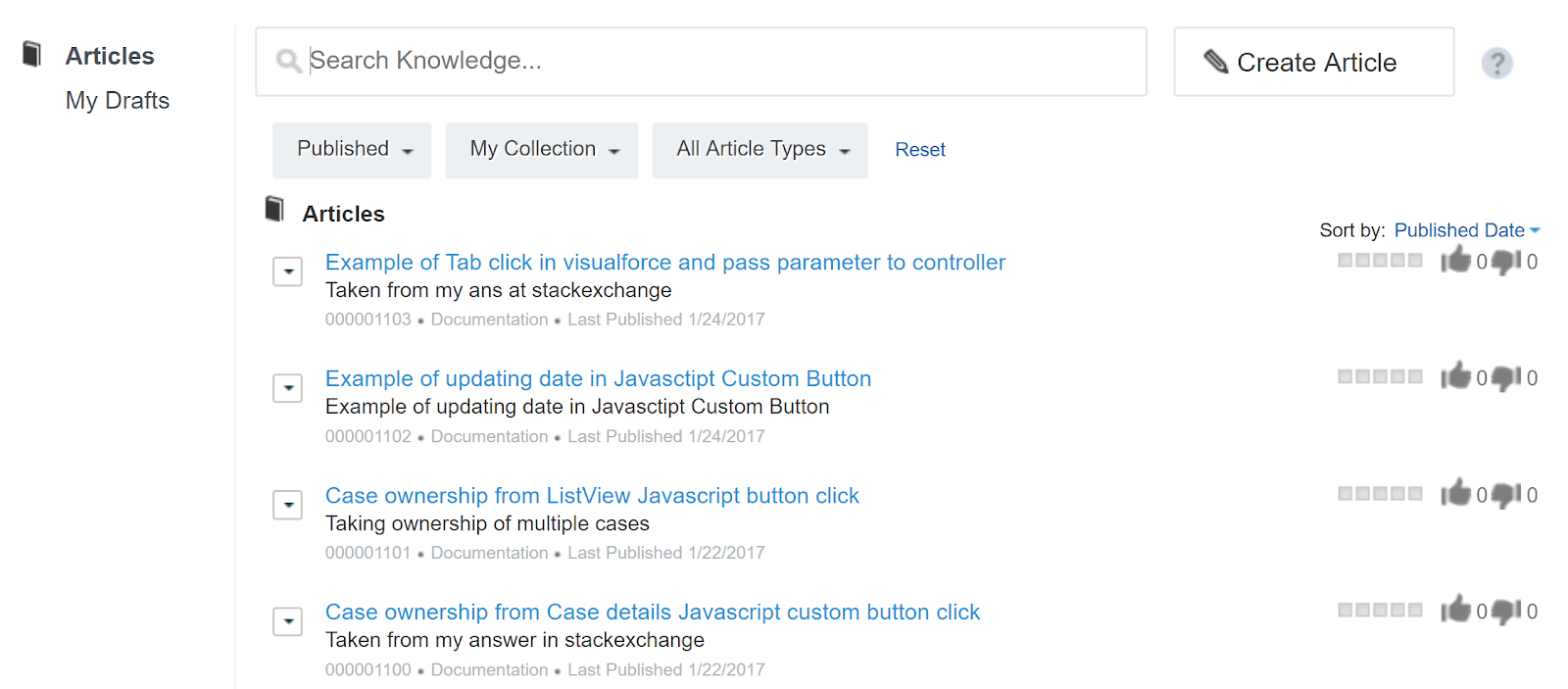
Here is my knowledge base tips and tricks


Use of data category to filter out relevant search


Keyword search


Example of an article (taken from my own answer at http://salesforce.stackexchange.com)


To create Salesforce knowledge, refer Getting started with Knowledge trailhead.


Salesforce provides nice knowledge management functionality which helps to retain our knowledge. We can create 100 articles in Developer edition.

If we can develop this and keep creating articles then it will be a huge effort saving on day to day  work and for future reference.

Appreciation from Salesforce


The above blog post has been appreciated by Salesforce in twitter. 


Saturday, March 17, 2018

Keyword Search Series - Display paginated data using Visualforce and Datatable for CaseComments with server side search

Use Case


User wants to search on Case Comment's body based on search input. The nature of functionality will as follows:
  • User will be navigated from Account Details page. Account records can have may cases and each case records may have many case comments.
  • User will provide the search input and based on the search input, data will be displayed at Visualforce page.
  • Keyword search needs to be performed on body of Case Comment.
  • Data will be displayed in the paginated way.
  • The keyword will be highlighted in yellow color.

The screen will be look like this:


Approach


If I like to follow my solution provided in the last post Keyword Search Series - Display data using Visualforce and Datatable using sever side ajax, it will not going to work.

Reason behind this, StandardSetController cannot take a List of Task, Event or CaseComment records. 

Secondly, in my last post I have used the Container Page that is main Visualforce page which doesn't have Controller. If I try to use Controller along with server side ajax which is using another Visualforce page then cross origin violation error will occur.

But the main page, I have to use Controller which might needed for other operations. Like I can have different buttons and can perform other actions etc (through it is not related to the small use case, but it is quite justified for most the scenarios).

Thirdly, for pagination purpose I can use jQuery Datatable, but the datatable search box will not use. As because, it will perform server side search and then pull the records from the Salesforce database.

Solution


Visualforce

1. For searching, declare textbox like this

<apex:inputText value="{!searchString}" label="Search in Comments"/>  

2. Create a pageBlockTable which will be used as jQuery Datatable
3. Since Datatable's searchbox should be hidden, use this style


.dataTables_wrapper .dataTables_filter {  
  float: right;  
  text-align: right;  
  visibility: hidden;  
}

4. Since we need to highlight the value, so we will assign datatable's "oSearch" attribute with the search input like this

"oSearch": {"sSearch": "{!searchString}"}

Is that sound interesting!!!

The full page will be as follows

1:  <apex:page id="AdvancedSearchCaseCommentPage" controller="AdvancedCommentSearchController" showHeader="false" action="{!init}" >  
2:    <head>  
3:      <apex:includescript value="//code.jquery.com/jquery-1.11.1.min.js" / >  
4:      <apex:includescript value="//cdn.datatables.net/1.10.4/js/jquery.dataTables.min.js" />  
5:      <apex:stylesheet value="//cdn.datatables.net/1.10.4/css/jquery.dataTables.css" />  
6:       <!-- Search Highlight -->  
7:      <apex:includeScript value="//bartaz.github.io/sandbox.js/jquery.highlight.js" />  
8:      <apex:includeScript value="//cdn.datatables.net/plug-ins/1.10.9/features/searchHighlight/dataTables.searchHighlight.min.js"/>  
9:      <apex:stylesheet value="//cdn.datatables.net/plug-ins/1.10.9/features/searchHighlight/dataTables.searchHighlight.css"/>  
10:      <style>  
11:        .filterMatches {  
12:          background-color: #BFFF00;  
13:        }  
14:        .tertiaryPalette {  
15:          color: #000 !important;  
16:        }  
17:        .dt-buttons {  
18:          margin-left: 10px;  
19:        }  
20:        .dataTables_wrapper .dataTables_filter {  
21:          float: right;  
22:          text-align: right;  
23:          visibility: hidden;  
24:        }  
25:      </style>  
26:      <script>  
27:        j$ = jQuery.noConflict();  
28:        j$(document).ready( function () {  
29:          var contactTable = j$('[id$="commentTable"]').DataTable({  
30:            "oSearch": {"sSearch": "{!searchString}"},  
31:            searchHighlight: true  
32:          });  
33:        });  
34:      </script>  
35:    </head>  
36:    <apex:form id="formid">  
37:      <apex:pageMessages id="msgsId"/>  
38:      <apex:pageBlock title="Advanced Search">  
39:        <apex:pageBlockSection >  
40:          <apex:outputText value="{!accountObj.Name}" label="Account:"/>   
41:          <br/>  
42:          <apex:inputText value="{!searchString}" label="Search in Comments"/>  
43:          <br/>          
44:        </apex:pageBlockSection>  
45:        <apex:pageBlockButtons location="bottom">      
46:          <apex:commandButton value="Search" action="{!searchComment}" />          
47:          <apex:commandButton value="Cancel" action="{!cancel}" />          
48:        </apex:pageBlockButtons>  
49:      </apex:pageBlock>  
50:       <apex:pageBlock title="Results" rendered="{!showResult}">  
51:         <apex:pageBlockTable value="{!lstRecords}" var="obj" rendered="{!showResult}" html-cid="commentTable" id="commentTable">           
52:            <apex:column headerValue="Case Number">  
53:              <apex:outputLink value="/{!obj.cont.ParentId}" target="_blank">{!obj.CaseNumber}</apex:outputLink>  
54:            </apex:column>  
55:            <apex:column headerValue="Comments">  
56:              {!obj.cont.CommentBody}  
57:            </apex:column>  
58:         </apex:pageBlockTable>   
59:      </apex:pageBlock>    
60:    </apex:form>  
61:  </apex:page>  

Controller


  1
  2
  3
  4
  5
  6
  7
  8
  9
 10
 11
 12
 13
 14
 15
 16
 17
 18
 19
 20
 21
 22
 23
 24
 25
 26
 27
 28
 29
 30
 31
 32
 33
 34
 35
 36
 37
 38
 39
 40
 41
 42
 43
 44
 45
 46
 47
 48
 49
 50
 51
 52
 53
 54
 55
 56
 57
 58
 59
 60
 61
 62
 63
 64
 65
 66
 67
 68
 69
 70
 71
 72
 73
 74
 75
 76
 77
 78
 79
 80
 81
 82
 83
 84
 85
 86
 87
 88
 89
 90
 91
 92
 93
 94
 95
 96
 97
 98
 99
100
101
102
103
104
105
106
107
108
109
110
111
112
113
114
115
116
117
118
119
120
/**
Class:  AdvancedCommentSearchController
Author: Santanu Boral
Description: To search string from Case Comments.
------------------------------------------------------------------------------
*/

public class AdvancedCommentSearchController { 

    public String accountId {get;set;}
    public Account accountObj {get;set;} 
    public String searchString{get;set;}
    public Boolean showResult{get;set;}
    
    public List<CaseCommentWrapper> lstWrapper {get;set;}
    public List<CaseCommentWrapper> lstRecords{get;set;}
     
    String errorStr = ''; 
    
    public Boolean hasError { 
        get { 
            return ApexPages.hasMessages(); 
        }       
    }
    
    public AdvancedCommentSearchController()
    {    
        lstWrapper =  new List<CaseCommentWrapper>();
        lstRecords = new List<CaseCommentWrapper>();
    } 
    
    public void init()
    {
        accountId = ApexPages.CurrentPage().getParameters().get('id');
        accountObj = [SELECT Name FROM Account WHERE Id =:accountId];
    }
    
    public void searchComment()
    {
        lstWrapper =  new List<CaseCommentWrapper>();
        Map<Id,Id> commentToCaseIdMap = new Map<Id,Id>(); //commentId, CaseId
        
        try
        {
            //perform validations
            if(String.isNotBlank(searchString) && searchString.length()>2)
            {                 
                //retrieve the list of case comments
                List<CaseComment> lstComment = [FIND :searchString
                                    IN ALL FIELDS RETURNING CaseComment (id,ParentId,
                                    CommentBody
                                    WHERE Parent.AccountId = :accountId
                                    ORDER BY CreatedDate DESC)                         
                                    LIMIT 1000][0];
                                    
                
                if(lstComment.size()>0)
                {
                    showResult = true;
                    
                    //loop through the case comments and assign values to wrapper object.
                    for(CaseComment cont : lstComment )
                    {
                        commentToCaseIdMap.put(cont.Id,cont.ParentId); //commentId, CaseId
                        CaseCommentWrapper objWrapper = new CaseCommentWrapper();
                        objWrapper.cont = cont;
                        objWrapper.Id = cont.Id;
                        objWrapper.ParentId = cont.ParentId;
                        objWrapper.CommentBody = cont.CommentBody;
                        lstWrapper.add(objWrapper);
                    }
                    
                    //since we need to display CaseNumber so it should be retrieved via separate query
                    Map<Id, Case> mapCaseCommentQuery = new Map<Id, Case>([SELECT Id, CaseNumber
                                                                FROM Case
                                                                WHERE Id IN:commentToCaseIdMap.values()]);
                    
                    //assign CaseNumber to the respective comment entries.
                    for(CaseCommentWrapper wrapper:lstWrapper)
                    {   
                        if(mapCaseCommentQuery.containsKey(wrapper.ParentId))
                        {
                            wrapper.CaseNumber = mapCaseCommentQuery.get(wrapper.ParentId).CaseNumber;  
                        }         
                    }
                    
                    //create an instance of Iterable object
                    CustomCaseCommentIterable obj = new CustomCaseCommentIterable (lstWrapper); 
                    
                    //assign page size
                    obj.setPageSize = lstComment.size();
                    
                    //perform next
                    lstRecords = obj.next();
                }
                else
                {
                    showResult = false;
                    ApexPages.addmessage(new ApexPages.message(ApexPages.severity.INFO,'No Records Found.'));
                }        
            }
            else if(searchString.length()<=2)
            {
                ApexPages.addmessage(new ApexPages.message(ApexPages.severity.INFO,'Please enter at-least 2 characters'));
            }
         }
        catch(Exception ex)
        {
            errorStr ='Error Occured while Searching.';
            ApexPages.addmessage(new ApexPages.message(ApexPages.severity.ERROR, 'errorStr:' +ex.getMessage()));
        }  
    }
    
    public PageReference cancel()
    {
        PageReference pRef =  (new ApexPages.StandardController (new Account(Id=accountId))).cancel();               
        pRef.setRedirect(true); 
        return pRef;
    }
}  

The visualforce page will be called from Custom Button which needs to be placed on Account page layout.

Code behind button

/apex/AdvancedSearchCaseCommentPage?id=<accountId>


Results


Initially user will be given to this page.


User will provide at-least 3 digit input and then controller's action method will populate the data based on SOSL search.


Conclusion


I have found this approach is really helpful in terms of performance and leveraging datatable's attributes mapping to the use case.

References


Sunday, March 11, 2018

Keyword Search Series - Display data using Visualforce and Datatable using sever side ajax

Use Case


User wants to search on Case description using some keyword. The data should be displayed in datatable. An account can have more than 5000 records, even it reaches up to 9000 records.

Important points to consider


  • In most of the blog posts, I have seen that, data is pulled up on the screen load and then performs the keyword search using datatable search input box. That approach will not work over here since there is large volume of data and user doesn't want to see all the data on page load.
  • Since search needs to be performed on Case Description which is Large Text Area (32000), so SOQL WHERE clause is not applicable.


Approach and Solution


  • Here, we have to leverage ajax's server side call which takes following input, basically the URL which returns the "data.json". Refer Datatable - Server Side Processing


$(document).ready(function() {
    $('#example').DataTable( {
        "processing": true,
        "serverSide": true,
        "ajax": "../server_side/scripts/server_processing.php"
    } );
} );

  • Secondly, we need to perform SOSL search on keywords.
I have taken the datatable server side approach from this excellent blog post Server side pagination/processing with Datatable js in Salesforce

Only thing, I have blended this with SOSL search here.

Main Visualforce


Here server side call is performed through this


"ajax": "{!$Page.AdvancedSearchDataTableHelperPage}?core.apexpages.devmode.url=1&id={!$CurrentPage.parameters.id}" 


1:  <!--========================================================================================-->  
2:  <!--Name: AdvancedSearchCasePage                            -->  
3:  <!--========================================================================================-->  
4:  <!--=========================================================================================->  
5:  <!-- Purpose:                                        -->  
6:  <!-- This page is used to perform Advance Search on Cases related to particular Account,    -->   
7:  <!--========================================================================================-->  
8:  <!--========================================================================================-->  
9:  <apex:page>  
10:    <apex:form>  
11:      <!-- Jquery -->  
12:      <apex:includeScript value="//code.jquery.com/jquery-1.11.3.min.js" />  
13:      <apex:stylesheet value="//ajax.googleapis.com/ajax/libs/jqueryui/1.11.4/themes/smoothness/jquery-ui.css"/>  
14:      <!-- DataTable -->  
15:      <apex:includeScript value="//cdn.datatables.net/1.10.9/js/jquery.dataTables.min.js"/>  
16:      <apex:stylesheet value="//cdn.datatables.net/1.10.9/css/jquery.dataTables.min.css"/>  
17:      <!-- Search Highlight -->  
18:      <apex:includeScript value="//bartaz.github.io/sandbox.js/jquery.highlight.js" />  
19:      <apex:includeScript value="//cdn.datatables.net/plug-ins/1.10.9/features/searchHighlight/dataTables.searchHighlight.min.js"/>  
20:      <apex:stylesheet value="//cdn.datatables.net/plug-ins/1.10.9/features/searchHighlight/dataTables.searchHighlight.css"/>  
21:      <style>  
22:        .filterMatches {  
23:          background-color: #BFFF00;  
24:        }  
25:        .tertiaryPalette {  
26:          color: #000 !important;  
27:        }  
28:        .dt-buttons {  
29:          margin-left: 10px;  
30:        }  
31:      </style>  
32:      <script type="text/javascript">  
33:        $(document).ready(function() {  
34:       //  alert('{!$CurrentPage.parameters.id}');  
35:          $.fn.dataTableExt.sErrMode = 'console';  //block alert   
36:          //this is for Case table  
37:          $('#table1').dataTable( {  
38:            searchHighlight: true,  
39:            //sets record lengths to show in picklist  
40:            aLengthMenu: [  
41:              [10, 25, 50, 100, 200, -1],  
42:              [10, 25, 50, 100, 200, "All"]  
43:            ],  
44:            "iDisplayLength": 10,  
45:            //adds copy, print buttons...  
46:            dom: 'lBrtip', //l=length, B=buttons, f=filter(search), r=processing, t=the table, I=table summary, p=page controls  
47:            buttons: [],            
48:            "processing": true,  
49:            "serverSide": true,  
50:            "ajax": "{!$Page.AdvancedSearchDataTableHelperPage}?core.apexpages.devmode.url=1&id={!$CurrentPage.parameters.id}",  
51:            "columns": [  
52:              { "data": "CaseNumber" },  
53:              { "data": "Subject" },  
54:              { "data": "Description" }  
55:            ]  
56:          } );  
57:        } );  
58:        $.fn.dataTableExt.oApi.fnFilterAll = function(oSettings, sInput,  
59:          iColumn, bRegex, bSmart) {  
60:          var settings = $.fn.dataTableSettings;  
61:          for (var i = 0; i < settings.length; i++) {  
62:            settings[i].oInstance.fnFilter(sInput, iColumn, bRegex,  
63:              bSmart);  
64:          }  
65:        };  
66:        $(document).ready(function() {  
67:          $('#table1').dataTable({  
68:            "bPaginate": false,  
69:          });  
70:          var oTable0 = $("#table1").dataTable();  
71:          $("#Search_All").keyup(function() {  
72:            // Filter on the column (the index) of this element  
73:            oTable0.fnFilterAll(this.value);  
74:          });  
75:        });      
76:      </script>  
77:      <apex:pageBlock id="header">  
78:      <apex:outputLabel value="Advanced Search of Cases by Account:" style="font-size:medium; font-weight:bold;" /> <br /><br />  
79:        <label>Search:</label>  
80:        <input type="text" id="Search_All" placeholder="Enter Search Keyword" />        
81:        <apex:commandLink action="{!URLFOR($Action.Account.View, $CurrentPage.parameters.id)}" value="Return"   
82:        styleClass="btn" style="padding: 4px; text-decoration: none;float: right;"/>  
83:      </apex:pageBlock>  
84:      <apex:pageBlock title="Cases" id="cases">  
85:        <table cellspacing="0" class="display" id="table1" style="width: 100%px;">  
86:          <thead>  
87:           <tr>  
88:             <th>Case</th>  
89:             <th>Subject</th>  
90:             <th>Description</th>  
91:           </tr>  
92:         </thead>  
93:        </table>  
94:      </apex:pageBlock>  
95:      <apex:commandLink action="{!URLFOR($Action.Account.View, $CurrentPage.parameters.id)}" value="Return"   
96:        styleClass="btn" style="padding: 4px; text-decoration: none;float: right;"/>  
97:    </apex:form>  
98:  </apex:page>  

Ajax search Visualforce


This page returns actually renders JSON data upon calling processData through page's action.

1:  <apex:page id="AdvancedSearchDataTableHelperPage" contentType="application/x-JavaScript; charset=utf-8"   
2:       showHeader="false" sidebar="false" applyHtmlTag="false" controller="AdvancedSearchDataTableHelper" action="{!processData}">  
3:   {!dataTableJson }  
4:  </apex:page>  


Ajax search Controller


Few points I have considered here:
  • It will consider at-least 2 digit input
  • Secondly in the search input appending '*'
  • Data set returned from SOSL directly assigning into StandardSetController's constructor.
  • Limiting records up to 2000 records otherwise it might give ViewState error or Heap Size error as Description is 32k characters.
  • Finally, creating JSON formatted data which datatable expects.

 1
 2
 3
 4
 5
 6
 7
 8
 9
10
11
12
13
14
15
16
17
18
19
20
21
22
23
24
25
26
27
28
29
30
31
32
33
34
35
36
37
38
39
40
41
42
43
44
45
46
47
48
49
50
51
52
53
54
55
56
57
58
59
60
61
62
63
64
65
66
67
68
69
70
71
72
73
74
75
76
77
78
79
80
/*
 * Created By: Santanu Boral
 * Purpose: This class is used by AdvancedSearchDataTableHelper        
 * -------------------------------------------------------------------------- 
 */
public class AdvancedSearchDataTableHelper{
 
    Public Integer noOfRecords{get; set;}
    Public Integer size{get;set;}
    Public Integer start{get;set;}
    
    
    public String accountId {get;set;}
    
    public AdvancedSearchDataTableHelper(){
         
    }
 
    public string dataTableJson {get;set;}
    
    public void processData()
    {    
        accountId =ApexPages.CurrentPage().getparameters().get('id');
  
        String searchString = ApexPages.currentPage().getParameters().get('search[value]');       
        if(null!=searchString && searchString.length()>2)
        {
            if(!searchString.endsWith('*'))
            {
                searchString = searchString + '*';
            }
            //get starting record number for current view, this parametter will be send by datatable js
            start= Integer.valueOf(ApexPages.currentPage().getParameters().get('start'));
            //start= 0;//Integer.valueOf(ApexPages.currentPage().getParameters().get('start'));
          
            //current number of records per page, it is also in avilable in get request
            size = Integer.valueOf(ApexPages.currentPage().getParameters().get('length'));
            
            //intialize standard controller with query
            
            ApexPages.StandardSetController setConCase = new ApexPages.StandardSetController([FIND :searchString
                                    IN ALL FIELDS RETURNING Case (id,CaseNumber,Subject, Description
                                    WHERE AccountId = :accountId
                                    )                                                         
                                    LIMIT 2000][0]);
            
            setConCase.setPageSize(size);
            noOfRecords= setConCase.getResultSize();
            system.debug('noOfRecords '+noOfRecords);
         
            setConCase.setPageNumber((start/size)+1);
            List<SObject> caseList = setConCase.getRecords();
            System.debug('caseList=' + caseList);
   
            //create wrapper
            DataTableWrapper datawrap = new DataTableWrapper(0,noOfRecords,noOfRecords,caseList);
            dataTableJson = JSON.serialize(datawrap);
        }
        else
        {
            DataTableWrapper datawrap = new DataTableWrapper(0,0,0,new List<SObject>());
            dataTableJson = JSON.serialize(datawrap);
        }
         
    }
    public class DataTableWrapper{
        public Integer draw;
        public Integer recordsTotal;
        public Integer recordsFiltered;
        public List<SObject> data;
        public DataTableWrapper(Integer draw,Integer recordsTotal,Integer recordsFiltered,list<SObject> data){
            this.draw = draw;
            this.recordsTotal = recordsTotal;
            this.recordsFiltered = recordsFiltered ;
            this.data = data;
        }
         
    }    
}

This visualforce page can be called from a Detail Page button. The code behind the button will be


/apex/AdvancedSearchCasePage?id=<accountId>

Results


Initially user will be given to this page.


User will provide at-least 3 digit input and then server side call will populate the data as follows


Conclusion


I have found this approach is really helpful in terms of performance and hence sharing with you.


Further experiment


In my next post, I will post searching on Case Comments where this approach doesn't work fully. Reason behind why, please check out my next post.

Keyword Search Series - Display paginated data using Visualforce and Datatable for CaseComments with server side search

Saturday, March 10, 2018

Keyword Search Series - Display data using Visualforce and Datatable

Use Case


User wants to display Case data based on Account and wants to perform keyword search on the dataset in the table. It should also highlight the search input in the match records.

Solution


This can be easily be achieved with the use of jQuery datatable with visualforce page.

Visualforce


1:  <apex:page controller="AdvancedKeywordSearchController">  
2:    <apex:form>  
3:      <!-- Jquery -->  
4:      <apex:includeScript value="//code.jquery.com/jquery-1.11.3.min.js" />  
5:      <apex:stylesheet value="//ajax.googleapis.com/ajax/libs/jqueryui/1.11.4/themes/smoothness/jquery-ui.css" />  
6:      <!-- DataTable -->  
7:      <apex:includeScript value="//cdn.datatables.net/1.10.9/js/jquery.dataTables.min.js" />  
8:      <apex:stylesheet value="//cdn.datatables.net/1.10.9/css/jquery.dataTables.min.css" />  
9:      <!-- Search Highlight -->  
10:      <apex:includeScript value="//bartaz.github.io/sandbox.js/jquery.highlight.js" />  
11:      <apex:includeScript value="//cdn.datatables.net/plug-ins/1.10.9/features/searchHighlight/dataTables.searchHighlight.min.js" />  
12:      <apex:stylesheet value="//cdn.datatables.net/plug-ins/1.10.9/features/searchHighlight/dataTables.searchHighlight.css" />  
13:      <style>  
14:        .filterMatches {  
15:          background-color: #BFFF00;  
16:        }  
17:        .tertiaryPalette {  
18:          color: #000 !important;  
19:        }  
20:        .dt-buttons {  
21:          margin-left: 10px;  
22:        }  
23:      </style>  
24:      <script type="text/javascript">  
25:        $(document).ready(function() {  
26:          var casesTable = $('[cid$="casesTable"]').parent(  
27:            'table').eq(0).DataTable({  
28:            //enables results highlight  
29:            searchHighlight: true,  
30:            //sets record lengths to show in picklist  
31:            aLengthMenu: [  
32:              [10, 25, 50, 100, 200, -1],  
33:              [10, 25, 50, 100, 200, "All"]  
34:            ],  
35:            "iDisplayLength": 10,  
36:            //adds copy, print buttons...  
37:            dom: 'lBrtip', //l=length, B=buttons, f=filter(search), r=processing, t=the table, I=table summary, p=page controls  
38:            buttons: [],  
39:          });  
40:          $('#table1').dataTable({  
41:            "bPaginate": false,  
42:          });  
43:          var oTable0 = $("#table1").dataTable();  
44:          $("#Search_All").keyup(function() {  
45:            // Filter on the column (the index) of this element  
46:            oTable0.fnFilterAll(this.value);  
47:          });  
48:        });  
49:        $.fn.dataTableExt.oApi.fnFilterAll = function(oSettings, sInput,  
50:          iColumn, bRegex, bSmart) {  
51:          var settings = $.fn.dataTableSettings;  
52:          for (var i = 0; i < settings.length; i++) {  
53:            settings[i].oInstance.fnFilter(sInput, iColumn, bRegex,  
54:              bSmart);  
55:          }  
56:        };  
57:      </script>  
58:      <apex:pageBlock id="header">  
59:        <apex:outputLabel value="Advanced Search of Case by Account: {!accountObj.Name}" style="font-size:medium; font-weight:bold;" /> <br /><br />  
60:        <label>Search:</label>  
61:        <input type="text" id="Search_All" placeholder="Enter Search Keyword" />  
62:        <apex:commandButton value="Cancel" action="{!cancel}" style="float: right;" />  
63:      </apex:pageBlock>  
64:      <apex:pageBlock title="Cases" id="cases">  
65:        <apex:pageblockTable value="{!caseList}" var="case" html-cid="casesTable" id="table1">  
66:          <apex:column headerValue="Case Number">  
67:            <apex:outputLink value="/{!case.id}">{!case.CaseNumber} </apex:outputLink>  
68:          </apex:column>  
69:          <apex:column value="{!case.Subject}" headerValue="Subject" />  
70:          <apex:column value="{!case.Description}" headerValue="Description" />  
71:        </apex:pageblockTable>  
72:      </apex:pageBlock>  
73:      <apex:commandButton value="Cancel" action="{!cancel}" style="float: right;" />  
74:    </apex:form>  
75:  </apex:page>  

Apex Controller

During loading of the screen, it will take id parameter and execute an SOQL query and creates a list of records.


 1
 2
 3
 4
 5
 6
 7
 8
 9
10
11
12
13
14
15
16
17
18
19
20
21
22
23
24
25
26
27
28
29
30
31
32
33
34
35
/*
 * Created By: Santanu Boral
 * Purpose: This class is used by AdvancedKeywordSearchPage        
 * -------------------------------------------------------------------------- 
 */

 public with sharing class AdvancedKeywordSearchController
 {
  public List<Case> caseList {get;set;}
  public String accountId {get;set;}
  public Account accountObj {get;set;} 
  
  
 public AdvancedKeywordSearchController() 
 {
    
    accountId = ApexPages.CurrentPage().getParameters().get('id');
    accountObj = [SELECT Name FROM Account WHERE Id =:accountId];
    /*
    - Query to fetch all the cases related to current Account
    */
    caseList = [SELECT CaseNumber, Subject, Description
        FROM  Case
        WHERE AccountId =:accountId 
        ORDER BY CaseNumber DESC];    
 }
    
    public PageReference cancel()
    {
        PageReference pRef = (new ApexPages.StandardController (new Account(Id=accountId))).cancel();               
        pRef.setRedirect(true); 
        return pRef;
    }
    
}

This visualforce page can be called from a Detail Page button. The code behind the button will be


/apex/AdvancedKeywordSearchController?id=<accountId>

Results


Saturday, February 17, 2018

Platform Encryption - Things to know before activating Platform Shield

In my other post Platform Encryption - Encryption at Rest, I have talked about how platform encryption works. This is post is related to what are the things to know before activating Shield and what can be proposed solutions.


Use Case


XYZ Company is already using a Production organization for couple of years and now Business wants to encrypt following fields which might contain PII, PHI information like:

Account:
  • Name
  • Shipping Address (Street, City)
  • Other custom fields

Contact
  • Name
  • Phone
  • Mailing Address (Street, City)
  • Other custom fields
Case Comment
  • Body
Attachment
  • Body
Task
  • Description

And there could be other Custom objects and fields can be encrypted.

Analyze the impact


We can get Platform Shield license in Developer Edition to play around, but actual impact analysis can only be done on Developer or Partial Copy  or Full Copy Sandbox.

Prepare a sandbox


Contact Salesforce for activating Shield in Production, and then refresh the sandbox or without refreshing - from Company Information, click on Match Production Licenses button and wait for a mail to apply production licenses on sandbox.

Prerequisite for encryption

First, Generate Tenant Key in the org.

Go to Setup  Platform Encryption ➜ Key Management


What are the fields can be encrypted?


To encrypt Standard fields, navigate Setup  Platform Encryption ➜ Encryption Policy


And click on Encrypt Fields link to encrypt desired standard fields.


For custom fields, edit the field details.


How newly created records can be encrypted?


If we create a new field and create a record then value will be encrypted with the keys.

How existing records can be encrypted?


If we update an existing record, even if without changing any values from UI and pressing Save button, the values will be encrypted.

By loading .csv file through data loader, existing records can be encrypted.

But, for those updates we will see Last Modified By and Last Modified Date changes.

For mass update (including attachments), contact Salesforce support, who can run the job during off-hours. Beauty of this update is Last Modified By or date are not getting changed.
Secondly, no need to deactivate any triggers, workflows etc to perform this job which runs by Salesforce.

How do I know how many records are encrypted and how many are pending to be encrypted?

Encryption Statistics will give the full details.

Setup ➜ Security Controls ➜ Platform Encryption ➜ Encryption Statistics


What will happen if we try to mark the field as encrypted?

Salesforce verifies following areas if it has been used:

  • Portals
  • Criteria-Based Sharing Rules
  • SOQL/SOSL Queries
  • Formula Fields
  • Skinny Tables
  • Microsoft Integration Products


Salesforce sends an email that field cannot be encrypted because of the reasons. Here is an example.


Note: 

a. If field has been used in the report filter then marking field as encrypted will automatically remove the filters from the report. Salesforce will not show any error messages.

b. If field has been used in the list view filter then marking field as encrypted will automatically remove the filters from the list view. Salesforce will not show any error messages.

What will happen if we have existing Case comments?


If comment body contains more than 2959 characters then that record cannot be encrypted.

Also, after marking the Case Comments body field as encrypted, if we try to enter more than 2959 character, Salesforce will not allow to save.

Can encrypted fields be used in filters?


Encrypted fields are NOT available in List View filters, Report filters. Though those fields can be used a column to display those values.

Can encrypted fields be used for sorting?


Encrypted fields are NOT sort-able in List view.


Can encrypted field values be searchable by Global search?

Yes, encrypted field values are searchable through global search.


What will we see if reports are exported with encrypted data?

The extracted .csv file will shows the data in a normal way (seems like it is not encrypted).

If we run a SOQL query from Developer Console or in apex code how the encrypted data gets displayed?

The encrypted field data will return normally seems like it is not encrypted.

What could be impacts on integration, lets say from Salesforce a JSON string is passed to third party application or a third party application updating Salesforce?

There is no need for data transformation. Request will show same type of data as if it looks like un-encrypted.


[{
  "ContactID" : "0030j00000BfcpGAAR",
  "Phone" : "9087654567",
  "MiddleName" : null,
  "LastName" : "Boral",
  "FirstName" : "Santanu",
  "Fax" : null,
  "Email" : "san.boral@xyz.com"  
}]

What could be impacts on data migration if we import the data into Salesforce?

There should not be any changes to be made in the .csv and there should not be any delay due to encrypting data (minor unnoticeable lag but it's okay). 

What could be the impacts if existing managed package is already having SOQL WHERE clause with LIKE operator on Account Name which we are trying to encrypt?

Until and unless that managed package code is rectified, Account Name cannot be encrypted.

Also, it is recommended to managed packaged developer that they handle this kind of scenario, so that target organisation can perform encryption in future.

How Task's description can be encrypted?

This part is interesting. Till today (Spring 18 release), Salesforce doesn't allow Task records to be encrypted. So, if we have existing task description records then, we need to create custom object and create a custom description field (refer picture of Comment field) and store the records during creation and updating of Task.

Any changes on Platform Encryption at Spring 18 release?

Salesforce comes with filtering Encrypted Data with Deterministic Encryption (Beta) .

Deterministic encryption supports WHERE clauses in SOQL queries and is compatible with unique and external ID fields and custom indexes. 

For example, you might run a SOQL query in custom Apex code against the Contact object, where LastName = 'Smith'. If the LastName field is encrypted with probabilistic encryption, you can’t run the query. Deterministic encryption addresses this problem.

For more information, refer Filter Encrypted Data with Deterministic Encryption (Beta)

Further Reading

Platform Encryption - Encryption at Rest

References

Salesforce Shield Platform Encryption Implementation Guide