Motivation behind this
Earlier I have written about the post on displaying Google maps either on Salesforce Community and through drag-and-drop functionality. From a long time, I want to experiment that on Flow and tried to achieve the same thing.
This way, we can extend the power of Lightning Web Components combining the configurable features of Flow.
Use Case
Business has a requirement to see the location of an Account in a Google Map, but only on a demand basis. Business doesn't want to see this map on Record Detail page every time. Rather, they want to view as and when required upon clicking on a button on Record Detail page and it will show as a pop up screen.
Developer wants to build this Google map component using Lightning Web Components which will be displayed as a pop up using Flow.
Expected Outcome
Clicking on Show Location quick action, the flow will be displayed as pop up screen to display the location.
Solution Approach
Salesforce provides lightning-map component which displays one or more locations. It inherits the styling from map of Lighting Design System.
And, it is easier to display the component inside Flow, rather than using a separate pop-up component.
So, let's first prepare the component in LWC.
displayAccountMapInFlow.html
Simple page which holds lighting-map component.
<template>
    <lightning-map
        map-markers={mapMarkers}
        zoom-level={zoomLevel}>
    </lightning-map>
</template>
displayAccountMapInFlow.js
Few important points on the approach:
- My earlier post talks about fetching the data using Apex classes. Here I have used ui*api Wire adapters. The benefits of using this is, we don't have a create separate Apex Class to fetch the record. Secondly, it recognizes access rights of the users meaning if the user doesn't have access to the field then error will return. If you are not sure about field access then you can use those fields as Optional.
- We know that, we can get recordId using @api, but when the component is embed into flow then this recordId will not work. We need to pass recordId explicitly from Flow. This is tricky.
- As this component can be reused to display in App page or record detail page so the recordId check has been done in connectedCallback method.
Following way, you can check falsy values, no need to separately verify null or undefined.
this.recordId = (!!this.recordId) ? this.recordId: this.sfdcRecordId;
Here is the way, through metadata config file.
<targetConfigs>
	<targetConfig targets="lightning__FlowScreen">
		<property name="sfdcRecordId"
			type="string"
			label="Pass record Id"
			description="Pass record Id"/>
	</targetConfig>
</targetConfigs>
Entire .js as below
 1
 2
 3
 4
 5
 6
 7
 8
 9
10
11
12
13
14
15
16
17
18
19
20
21
22
23
24
25
26
27
28
29
30
31
32
33
34
35
36
37
38
39
40
41
42
43
44
45
46
47
48
49
50
51
52
53
54
55
56
57
58
59
60
61
62
63
64
65 | /*
* Author: Santanu Boral
*/
import { LightningElement, api,track, wire } from 'lwc';
import { ShowToastEvent } from 'lightning/platformShowToastEvent';
import { getRecord } from 'lightning/uiRecordApi';
//define the field values to be retrieved
const FIELDS = ['Account.Name', 'Account.BillingStreet',
'Account.BillingCity', 'Account.BillingState',
'Account.BillingPostalCode', 'Account.BillingCountry'
];
export default class DisplayAccountMapInFlow extends LightningElement {
@api recordId; //if this component is used other than flow then it will be used
@api sfdcRecordId; //this is passed from flow
@api zoomLevel; //this is passed from flow
account; //internal variable to store the account data
mapMarkers = []; //this is used on HTML for attribute value
//This method check the values passed into the component
connectedCallback(){
this.recordId = (!!this.recordId) ? this.recordId: this.sfdcRecordId;
this.zoomLevel = (!!this.zoomLevel) ? this.zoomLevel: 6;
}
//fetch record details based on recordId
@wire(getRecord, { recordId: '$recordId', fields: FIELDS })
wiredRecord({ error,data }) {
if (data) {
this.account = data;
//prepare marker to display on map
this.mapMarkers = [
{
location: {
Street: this.account.fields.BillingStreet.value,
City: this.account.fields.BillingCity.value,
State: this.account.fields.BillingState.value,
PostalCode: this.account.fields.BillingPostalCode.value,
Country: this.account.fields.BillingCountry.value
},
icon: 'custom:custom26',
title: this.account.fields.Name.value,
}
];
}
else if (error){
let message = 'Unknown error';
if (Array.isArray(error.body)) {
message = error.body.map(e => e.message).join(', ');
} else if (typeof error.body.message === 'string') {
message = error.body.message;
}
this.dispatchEvent(
new ShowToastEvent({
title: 'Error loading Account',
message,
variant: 'error',
}),
);
}
}
}
|
displayAccountMapInFlow.js-meta.xml
You can see the zoomLevel has been passed along with recordId from Flow.
<?xml version="1.0" encoding="UTF-8"?>
<LightningComponentBundle xmlns="http://soap.sforce.com/2006/04/metadata">
    <apiVersion>49.0</apiVersion>
    <isExposed>true</isExposed>
    <targets>
        <target>lightning__RecordPage</target>
        <target>lightning__AppPage</target>
        <target>lightning__FlowScreen</target>
    </targets>
    <targetConfigs>
        <targetConfig targets="lightning__FlowScreen">
            <property name="zoomLevel"
                type="string"
                label="Enter zoom level of map"
                description="Enter zoom level of map"/>
            <property name="sfdcRecordId"
                type="string"
                label="Pass record Id"
                description="Pass record Id"/>
        </targetConfig>
    </targetConfigs>
</LightningComponentBundle>
Development on Flow Side
Overall flow will look like as below:
First, create recordId variable to capture the recordId of the current record.
Next, create a variable with text datatype with a name varRecordId.
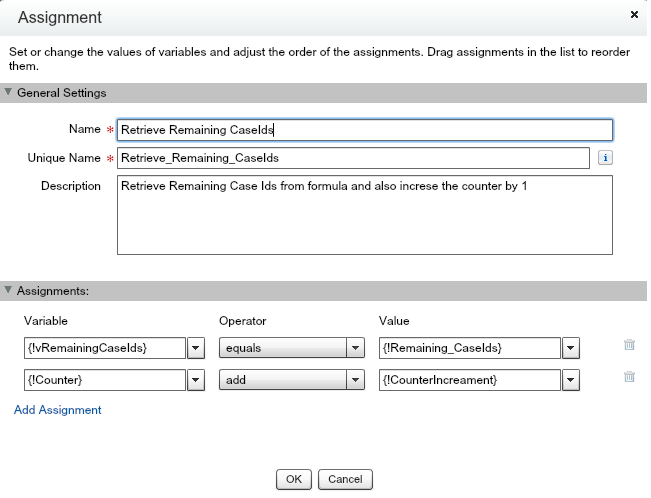
Now, assignment to be done as follows:
Finally, the form screen as below
You can see that zoom level is passed as 16 and record Id has been passed with {!varRecordId}
Now, let's call this flow through quick action and expose that in the page layout.
That's it!.
For testing purpose, go to a record detail page and clicking on Show Location quick action, the flow will be opened to display the component.
Hope it helps and thanks for reading.
References
Further Reading