Showing posts with label Einstein Analytics. Show all posts

Monday, July 13, 2020

Tips for passing Salesforce Einstein Analytics and Discovery Consultant Certification

Motivation behind this


Yesterday (11th July,2020), I have successfully passed Einstein Analytics and Discovery Consultant Certification. Last year I have started learning EA through trailhead modules and trailmixes. 

Salesforce is providing guidance on certification preparations through Partner Portal which helps me to prepare and pass this exam.

Don't forget to read Experience on appearing online exam section at the end.


Exam Outline


  • Prerequisite: There are no prerequisites for taking this exam
  • Exam Format: 60 multiple-choice/multiple-select questions and 5 non scored questions
  • Time allotted to complete the exam: 90 minutes
  • Passing score: 68%
  • Registration fee: 200 USD
  • Delivery options: Online proctored or onsite proctored delivery. 
  • Results: Provided immediately after exam submission as on-screen text and by email.

I have given myself 3 weeks time frame only for certification through the materials and sessions shared by Salesforce for partners and happy to see me passed.


Preparation


Topics to Consider for Exam


  • Data Flow, Data Sync (Replication)
  • Data Transformation - sfdcDigest, flatten, edgemart, computeExpression, computeRelative (almost 6-7 questions).
  • Use of External Data API
  • Co-grouping with SAQL
  • Integration User's currency
  • Different types of Connectors which can be used.
  • Shield Encryption
  • Sharing Inheritance, 
  • Support objects for Sharing Inheritance
  • Security Predicate (check with Role Hierarchy), Sharing Apps, View All Data permission
  • For different type of teams, permission sets with different set of permissions
  • Different types of roles (Viewer, Editor, Manager)
  • Analytics Permission Sets
  • Deployment with ANT migration tool, Change Sets
  • Analytics App Template - use of template-info.json
  • XMD - use cases behind edit/upload
  • Use of layout templates
  • Configuring Actions
  • Creating layouts for Web and Mobile
  • Trend Analysis
  • Performance issue
  • Binding by selection of a grouping
  • Binding syntax 
  • Compare table
  • Use of fill statement with SAQL
  • coalesce (atleast 2 questions)
  • Unbiased insights and Recommended actions
  • Write back package

Hope, this will help you to prepare for exam.

Here it comes actual experience.


Experience on appearing online exam


My luck was not with me on exam day. I have scheduled the exam at 4pm IST so started around 10 minutes before. Webassessor site was very slow on that day, usually doesn't happen. After bio-metric, when I am answering the questions and clicking the next button, I had wait around 75 secs to see the next question. So after going though all the 65 questions when I first went to review the first question then all of a sudden it logged out.
I have contacted the support over phone so that I could re-launch the same session. Now over call, there was long wait time and almost 5 times I have logged in and done bio-metric and faced the challenges.
Finally, scheduled again after my dinner at 11pm IST and completed exam at 12:15am IST.

So, after struggling after 8 hours, I was so excited to see me passed. By the way, Webassessor support persons are very helpful to support you. If this situation happens to you then don't panic, they will help you to bring the same session. They are reachable at this number (800 491 6595 and 602 659 4665).

Best of Luck.

Monday, August 12, 2019

Display Big Object's Records in Dashboards leveraging Salesforce Einstein Analytics

Motivation behind this


I have done few proof-of-concepts on Big Objects which has limitations of showing records in Salesforce Standard reports and dashboards. Big Objects can hold millions and billions of records which are good for data archival purpose. To display data in reports data must exist in Salesforce objects (Standard, Custom or External) where as for Big Objects, Standard reporting is not supported.


Today, I was going through the trailhead module Integrate Local and Remote Data in Einstein Analytics and thought of displaying Big Objects data using Einstein Analytics Studio and to overcome this limitation in a different ways.


Little bit information about Big Objects


  • It stores billions of data on Salesforce Platform and we can archive data from other objects or datasets.
  • There are two type of Big Objects: Standard and Custom
  • Only following field types are available: Lookup Relation, Number, Text, Long Text Area and Date/Time
  • Big Object supports custom Lightning and Visualforce components rather than standard UI elements home pages, detail pages, list views etc.
  • We can create up to 100 Big Objects in per org.
  • It doesn't support encryption.
For more information, refer Big Objects Implementation Guide


Use Case


Business has a requirement to show Big Objects data as reports and dashboards so that archived data can be viewed without loading them in Salesforce objects again.

Though developers can build custom UI screen using Lightning or Visualforce but Business wants them as reports/dashboards so that even Salesforce Administrator can maintain those.

Expected Outcome


After creating dashboard using Einstein Analytics Studio, it will look like this, though there are various types of charts are supported.


Solution Approach


First, create Big Object called Application (API name: Application__b) as follows:


Secondly, insert few records into this Application Big Object. For sake of simplicity, I have chosen 2 Accounts and inserted total 7 records with the following script.


Account acct = [SELECT Id, Name FROM Account WHERE Id='0012v00002RuJp7AAF'];
  
Application__b appObj = new Application__b();  
appObj.Name__c = 'My Application';  
appObj.Amount__c = 100;  
appObj.Description__c = 'Testing with data';  
appObj.Account__c = acct.Id;  
appObj.StartDate__c = System.today();  
  
Database.insertImmediate(appObj); 

For archival purpose, if data needs to be inserted then it can be done through batch processing.


Some terminology of Einstein Analytics


An Einstein Analytics app -  is a curated set of analyses and paths through your data, plus powerful tools for spontaneous, deep explorations. Analytics starts with apps. Apps organize data projects, run presentations directly from dashboards, and control asset sharing.

A lens - is a visualization of data in a dataset. You use the lens to explore data graphically and to build queries for a dashboard.

A Dataset - which contains the data to be displayed.


Configuring Einstein Analytics Studio


If we follow step by step the above trailhead project, it will be very easy. 

Sign Up for an Analytics Developer Edition Org


For actual development, Customer has to procure the licenses.

Create a Dataflow

Navigation: Analytics Studio -> Data Manager -> Dataflows & Recipes

I have create a dataflow named Big Object Dataflow.

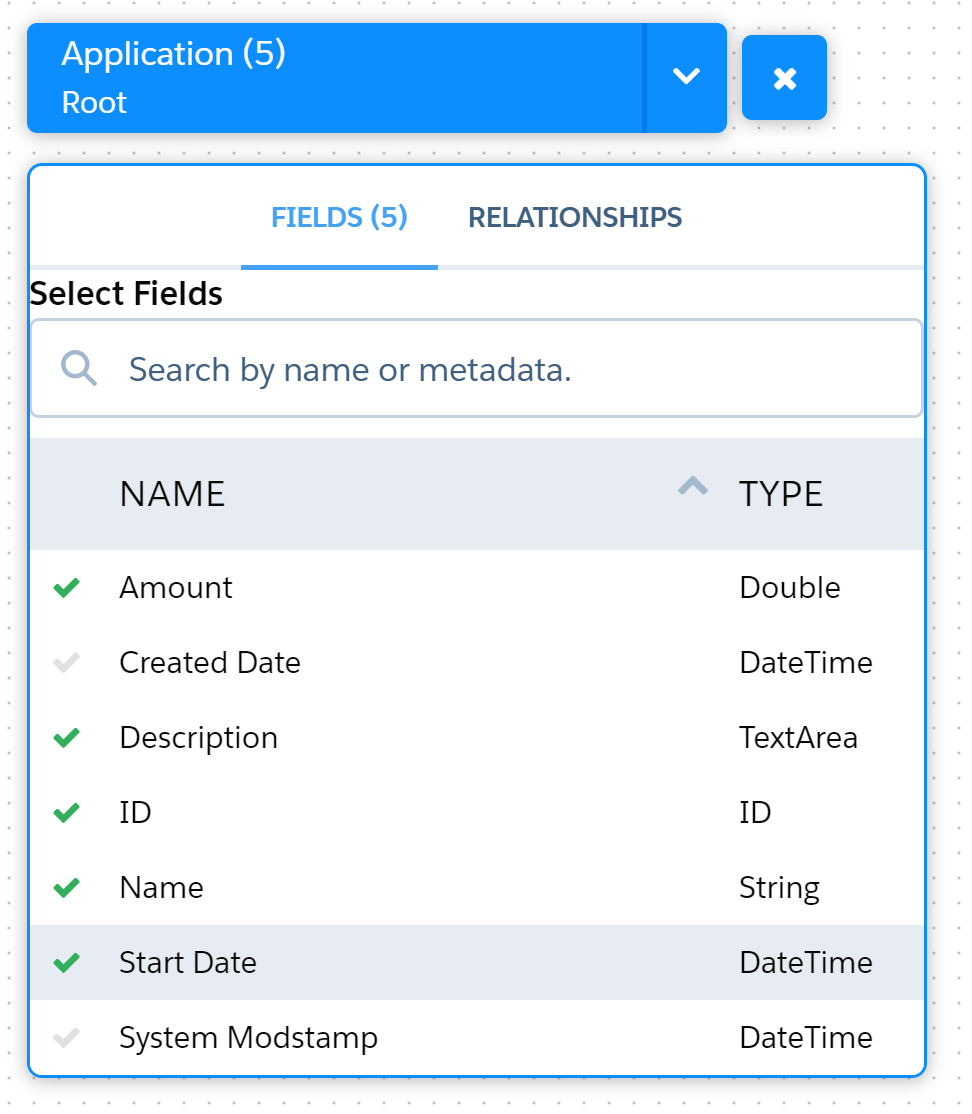
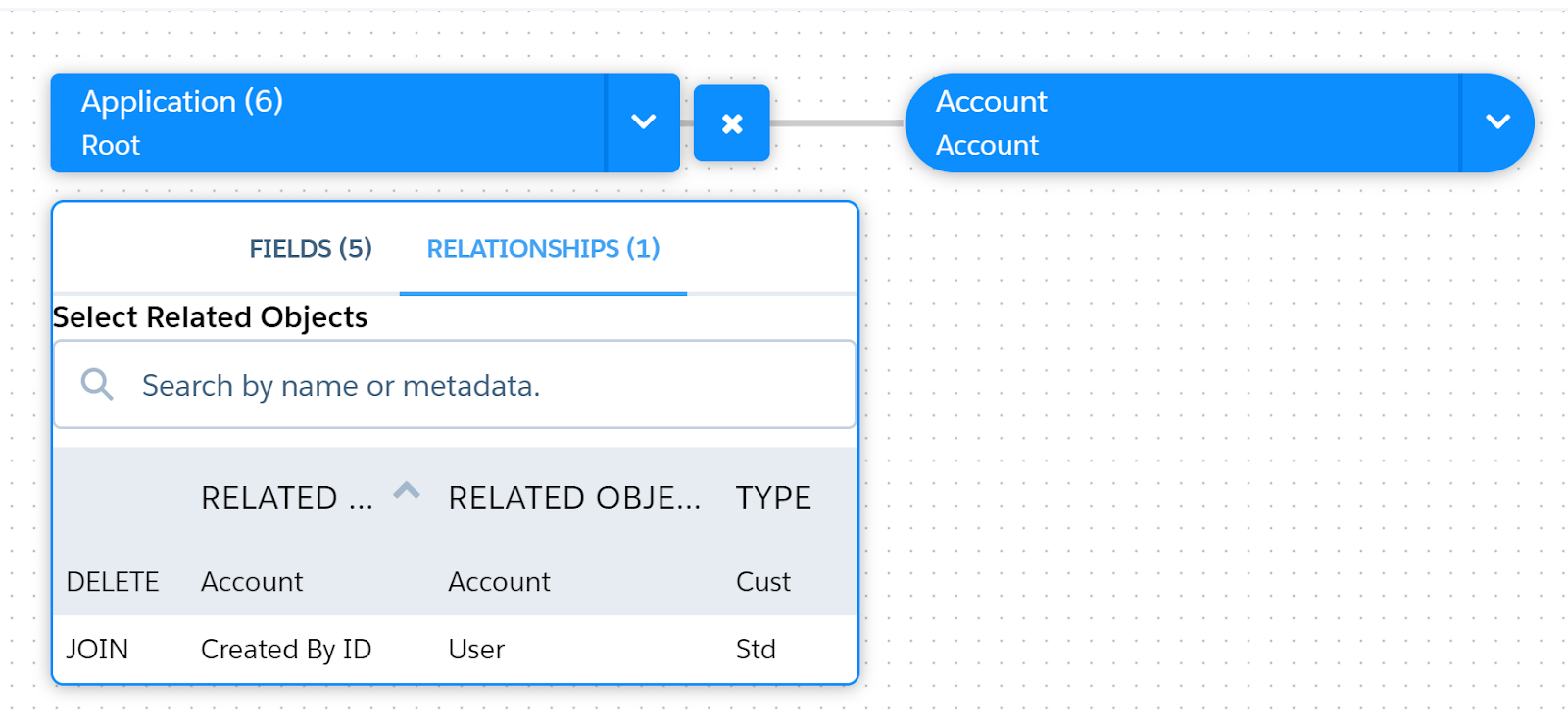
Here Application object is the root object and Account is related object. You can also see that, Application object has a lookup relationship to Account.

Create a Dataset


Choose root object and fields

Choose related objects from Relationships tab.

From Account, I have selected Name, Type and Billing Country.

Big Object Dataflow will look like this:


After that data will be pulled to the dataset, we can also schedule for refreshing the data.

Lens


Create an App - Here App is created with a name Big Object App

Create an Dashboard under the App.

Let's say 2 components to be added into the Dashboard, here Chart and Table type has been added.

Design screen will be as follows and Donut chart is selected for display

Chart Lens


Table Lens


And final dashboard will comprise of both the components and if we run the dashboard, we will see the final outcome as above.

You can see, both the Chart and Table Type displays all the rows of Big Objects and showing related all the accounts (Abbott358 Inc and Acme).

Let's say, if want to expose this dashboard to the Account page and only show the related Application Big Object's record.

Display Einstein Analytics Dashboard on Record Detail Page

Open the Account record and click on Edit Page to open in Lightning App Builder.

Select Einstein Analytics Dashboard component and drop that on the page.

Now, put Dashboard Filter so that only related Application records for that Account to be displayed.


And, finally save and activate this page.

So, we have overcome the limitation of displaying Big Object's records in dashboards through Einstein Analytics.

References


Related Reading